I am using a Trigger 6 Shooter in my van build. This is a 12/24V capable device that contains 6 remotely-controlled high-power fused outputs. The outputs can be controlled either by the included physical remote, which I have mounted above the front console, by using their mobile app, or by buttons on the device itself. I am using it to switch my front and rear LED lightbars, side LED lights and to open my gray water dump valve.
I am also using Home Assistant for various purposes – it can show me all the details and control my elaborate electrical and hydronic heating systems (more on those on a separate post some time in the future..). It can also control the inside lights, and eventually it will also control the air conditioner and roof fan. Being able to control all of the van’s systems from a single place is extremely convenient – I can check on things and control them from anywhere where there is Internet, as long as the van is also connected (through its 5G or Starlink uplinks). It also means I can control anything from anywhere inside the van, as long as I have my phone on me. Even though the van is a small space, not having to get up from bed or from the drivers seat to turn on the heat or change the lights contributes to a better experience. Its also nice to have everything under one control panel in the form of a tablet mounted on the wall at the center of the van. The alternative is having many control panels and switches – lights, AC, fan, heating, grey water… it adds up.
So in the process of getting everything to play nicely with Home Assistant I wanted to have the 6Shooter join the party. There’s currently no existing integration for it, so I had to come up with my own solution – which consists of an ESPHome device that controls the 6Shooter over BLE, similarly to the native mobile app.
Before getting to implementing anything on the ESPHome, I had to learn a bit about the 6Shooter BLE protocol. This was my first time playing with BLE, so I wanted to share some tips on how I figured out a way to achieve this goal.
The first thing I did was try and see how to get a capture of the BLE traffic from my iPhone to the 6Shooter. A quick search landed me on this blog post, through which I learnt that the Apple XCode ecosystem contains a helpful tool called Packet Logger. After setting up some stuff on the phone and connecting it to the laptop with a USB cable, I was able to obtain a packet capture. It looks something like this:

Pretty good start, and with enough patience this could’ve almost been sufficient. Before diving deeper into the protocol it was time to learn a bit about ESPHome’s BLE support which is provided using a component called ble_client. By reading that page, and the BLE Client Sensor page, I learnt that to write to a BLE device I need the following:
- The device’s MAC address
- The BLE service UUID I want to write to
- The characteristic UUID provided by that service that I want to write to
- The data I want to write
I figured a good start would be figuring out what the 6Shooter’s MAC address is. Apple’s PacketCapture tool unfortunately do not reveal that, so I figured I can try enabling the BLE Tracker Hub on some ESP32 device I had laying around and see if the logs contain anything useful.
I used the following YAML file:
esphome:
  name: bt-test

esp32:
  board: esp32dev
  framework:
    type: arduino


# Enable logging
logger:
  level: VERY_VERBOSE

# Enable Home Assistant API
api:
  password: ""

ota:
  password: ""

wifi:
  ssid: "XXX"
  password: "XXX"
  id: wifi_id

captive_portal:

web_server:
  port: 80

esp32_ble_tracker:
  on_ble_advertise:
    - then:
        - lambda: |-
            ESP_LOGD("ble_adv", "New BLE device");
            ESP_LOGD("ble_adv", "  address: %s", x.address_str().c_str());
            ESP_LOGD("ble_adv", "  name: %s", x.get_name().c_str());
            ESP_LOGD("ble_adv", "  Advertised service UUIDs:");
            for (auto uuid : x.get_service_uuids()) {
                ESP_LOGD("ble_adv", "    - %s", uuid.to_string().c_str());
            }
            ESP_LOGD("ble_adv", "  Advertised service data:");
            for (auto data : x.get_service_datas()) {
                ESP_LOGD("ble_adv", "    - %s: (length %i)", data.uuid.to_string().c_str(), data.data.size());
            }
            ESP_LOGD("ble_adv", "  Advertised manufacturer data:");
            for (auto data : x.get_manufacturer_datas()) {
                ESP_LOGD("ble_adv", "    - %s: (length %i)", data.uuid.to_string().c_str(), data.data.size());
            }
That was a good start – I was seeing details on various BLE devices:

Alas, the device name was always showing as an empty string. So how do I know which one is the 6Shooter?
I decided to give the Python library bleak a try to see if I can learn anything from it. I ran this script:
import asyncio
from bleak import BleakClient, BleakScanner
from pprint import pprint


async def main():
    devs = await BleakScanner.discover()
    for dev in devs:
        print(dev)
        print('    ', dev.address)
        print('    ', dev.details)
        print('    ', dev.metadata)
        print('    ', dev.name)

asyncio.run(main())
That got me this output:

This did show device names (yay!) but no MAC addresses (boo!). I noticed one thing that both the ESPHome logs and the bleak script output had in common – the manufacturer data. So I went and searched the ESPHome logs for the manufacturer data logged for the 6Shooter by the bleak script, and found it! I don’t have a screen capture of that, so you’ll need to take my word for it, but by doing this I learnt what my 6Shooter’s MAC is. I imagine other units will have a different MAC so the particular value is not that important.
Since bleak turned out to be convenient, I decided to connect to that device and see what I could learn with the following script:
import asyncio
from bleak import BleakClient, BleakScanner
from pprint import pprint


async def main():
    async with BleakClient('A9C42534-A273-43E1-5BC5-C6BF9FA253CD') as client:
        for svc in client.services:
            print(svc)
            for ch in svc.characteristics:
                print('    ', ch.uuid, ':', ch.description)
            print()
asyncio.run(main())
Since I’m not near the 6Shooter right now I don’t have the exact output for it, but here’s the output for my Apple Watch:

I now have service UUIDs and characteristic UUIDs, but I still needed to figure out which one is the one I need to write to. Here I got lucky – there were only two services – a Device Information one and one other one. So I just assumed it’s the second one. And the second one had a few characteristics with the following UUIDs:
0000fff1-0000-1000-8000-00805f9b34fb
0000fff2-0000-1000-8000-00805f9b34fb
0000fff3-0000-1000-8000-00805f9b34fb
0000fff4-0000-1000-8000-00805f9b34fb
0000fff5-0000-1000-8000-00805f9b34fb
0000fff6-0000-1000-8000-00805f9b34fb
Going back to the packet capture from the beginning, FFF6 looked promising:

The traffic is very noisy with a lot of activity even when I am not touching the 6Shooter or its remote (more on that later), but it felt like I can correlate presses on the mobile app with writes to this FFF6.
I decided to try and get ESPHome to connect to to the MAC address I discovered earlier, and write the bytes shown in the screenshot. I used the following script (bunch of boilerplate cut out):
esp32_ble_tracker:

ble_client:
  - mac_address: 18:45:16:B4:1C:CD
    id: six
    auto_connect: true

button:
  - platform: template
    name: two_on
    on_press:
      then:
        - ble_client.connect: six
        - ble_client.ble_write:
            id: six
            service_uuid: 0000fff0-0000-1000-8000-00805f9b34fb
            characteristic_uuid: 0000fff6-0000-1000-8000-00805f9b34fb
            value: [116, 136, 37, 33, 234, 222, 4, 210]
This wasn’t actually the first attempt – it took a bunch of futzing that is not interesting to mention here, but once I landed with the above snippet, I was able to turn on the 2nd output of the 6Shooter!
All I had to do next was to figure out the correct sequence of bytes for turning that output off, and do the same for all the other outputs. Conveniently, there’s no checksum or anything of that nature, so sending the same bytes consistently got me the same result. I could’ve painstakingly tried to capture the other eleven byte lists needed for turning on and off all the other outputs, but I wondered if there’s a better way to do it.
That let me through the path of downloading the app’s APK from the Android app store (there are a lot of sites online that makes it easy to do that), then extracting the APK using apktool (apktool d -r -s /Users/eran/Downloads/trigger.apk), then dex2jar (dex2jar application/classes.dex) and unzipping the resulting JAR file. The source code produced by this is surprisingly readable, even if not particularly pleasant. I am not going to share any of that here for obvious reasons, but suffice to say that by reading it I was able to learn the other byte sequences required to toggle the other outputs. I also learnt a bit more about what each byte does. It appears that the prefix [116, 136] is hardcoded. The following byte, 37, is some id that I think varies between their different products. 33 is a command to control outputs and 234 (in the example above) is the data for that command. 234 being “turn output 2 on”. 222 also seems hardcoded. The last two bytes, in the above example, are a password – [4, 210] if interpreted as a 16-bit big endian integer is (0x04d2) is the number 1234. I think that when I first ran the 6Shooter app it asked me to set a password… so maybe that it. Or maybe its 1234 for all units on the market.
The last missing piece was how to read the status of the outputs. Controlling them is nice, but I wanted my Home Assistant dashboard to reflect the real state of each output.
BLE Characteristics have attributes that indicate whether it is possible to write to a characteristic, read it, or subscribe to notifications.
I tried the naive solution of reading all the readable ones using Bleak but that didn’t get me anything. Some didn’t return any data, some returned a single zero byte. I tried subscribing to notifications for all the ones that support notifications, but received no notifications when toggling outputs via physical buttons. Disappointing, but I wasn’t going to give up. Digging further into the disassembled messy source code, I eventually learnt that there is a periodic message that goes out. A few more attempts and I landed with the following script:
import asyncio
from bleak import BleakClient, BleakScanner
from pprint import pprint


def notification_handler(sender, data):
    print(', '.join('{:02x}'.format(x) for x in data))

async def main():
    async with BleakClient('B6ECB9CA-C39C-372A-1234-828F7A39AF7E') as client:
        service_uuid = '0000fff0-0000-1000-8000-00805f9b34fb'
        svc = client.services[35]
        assert svc.uuid == service_uuid

        x = '0000fff7-0000-1000-8000-00805f9b34fb'
        await client.start_notify(x, notification_handler)

        c = svc.get_characteristic('0000fff6-0000-1000-8000-00805f9b34fb')
        while True:
            l = await client.write_gatt_char(c, bytes([116, 136,  37, 33, 0, 222, 4, 210]))
            await asyncio.sleep(1)
        await client.stop_notify(x)
asyncio.run(main())
It turns out that sending the 0 command results in a notification being sent to the FFF7 characteristic. There are two bytes there used to represent the status of each output – a simple bitfield. I still need to explore what the other bytes are. I know the mobile app displays the device voltage, so maybe that’s somewhere there – but that wasn’t a priority so I decided to move on to trying to get this all working on ESPHome.
At this point I started experimenting with ESPHome YAMLing, but kept running into crashes. It looks like the ESP32-WROOM-32 module I was using was not up to the task. I switched to using some board I made for a separate project that housed an ESP32-S3 module, and that got me past the crashes. So keep that in mind! Not all ESP32s are going to work.
I eventually landed with the following YAML:
esphome:
  name: esp-shooter
  platformio_options:
    board_build.arduino.memory_type: opi_opi

esp32:
  board: esp32-s3-devkitc-1
  framework:
    type: arduino
  flash_size: 32MB


# Enable logging
logger:
  #level: VERY_VERBOSE

# Enable Home Assistant API
api:
  password: ""

ota:
  password: ""

wifi:
  ssid: "XXX"
  password: "XXX"
  id: wifi_id

  # Enable fallback hotspot (captive portal) in case wifi connection fails
  ap:
    ssid: "ESP-Shooter Fallback Hotspot"
    password: "XXX"

captive_portal:

web_server:
  port: 80

globals:
  - id: connected_atleast_once
    type: bool
    restore_value: "false"
    initial_value: "false"

esp32_ble_tracker:

ble_client:
  - mac_address: 18:45:16:B4:1C:CD
    id: six
    auto_connect: true
    on_connect:
      then:
        - globals.set:
            id: connected_atleast_once
            value: "true"

sensor:
  - platform: ble_client
    type: characteristic
    ble_client_id: six
    service_uuid: 0000fff0-0000-1000-8000-00805f9b34fb
    characteristic_uuid: 0000fff7-0000-1000-8000-00805f9b34fb
    id: xxx
    notify: true
    lambda: |-
      ESP_LOGI("custom", "fff7 length %d", x.size());
      for (int i = 0; i < x.size(); i++) {
        ESP_LOGI("custom", "fff7[%d] = %d", i, x[i]);
      }

      id(sw_ch1).publish_state(x[2] & 1 ? true : false);
      id(sw_ch2).publish_state(x[2] & 2 ? true : false);
      id(sw_ch3).publish_state(x[2] & 4 ? true : false);
      id(sw_ch4).publish_state(x[2] & 8 ? true : false);
      id(sw_ch5).publish_state(x[1] & 1 ? true : false);
      id(sw_ch6).publish_state(x[1] & 2 ? true : false);

      return (float)0;

switch:
  - platform: template
    id: sw_ch1
    name: Ch1
    turn_on_action:
      - ble_client.ble_write:
          id: six
          service_uuid: 0000fff0-0000-1000-8000-00805f9b34fb
          characteristic_uuid: 0000fff6-0000-1000-8000-00805f9b34fb
          value: [116, 136, 37, 33, 230, 222, 4, 210]
    turn_off_action:
      - ble_client.ble_write:
          id: six
          service_uuid: 0000fff0-0000-1000-8000-00805f9b34fb
          characteristic_uuid: 0000fff6-0000-1000-8000-00805f9b34fb
          value: [116, 136, 37, 33, 231, 222, 4, 210]

  - platform: template
    id: sw_ch2
    name: Ch2
    turn_on_action:
      - ble_client.ble_write:
          id: six
          service_uuid: 0000fff0-0000-1000-8000-00805f9b34fb
          characteristic_uuid: 0000fff6-0000-1000-8000-00805f9b34fb
          value: [116, 136, 37, 33, 234, 222, 4, 210]
    turn_off_action:
      - ble_client.ble_write:
          id: six
          service_uuid: 0000fff0-0000-1000-8000-00805f9b34fb
          characteristic_uuid: 0000fff6-0000-1000-8000-00805f9b34fb
          value: [116, 136, 37, 33, 235, 222, 4, 210]

  - platform: template
    id: sw_ch3
    name: Ch3
    turn_on_action:
      - ble_client.ble_write:
          id: six
          service_uuid: 0000fff0-0000-1000-8000-00805f9b34fb
          characteristic_uuid: 0000fff6-0000-1000-8000-00805f9b34fb
          value: [116, 136, 37, 33, 238, 222, 4, 210]
    turn_off_action:
      - ble_client.ble_write:
          id: six
          service_uuid: 0000fff0-0000-1000-8000-00805f9b34fb
          characteristic_uuid: 0000fff6-0000-1000-8000-00805f9b34fb
          value: [116, 136, 37, 33, 239, 222, 4, 210]

  - platform: template
    id: sw_ch4
    name: Ch4
    turn_on_action:
      - ble_client.ble_write:
          id: six
          service_uuid: 0000fff0-0000-1000-8000-00805f9b34fb
          characteristic_uuid: 0000fff6-0000-1000-8000-00805f9b34fb
          value: [116, 136, 37, 33, 242, 222, 4, 210]
    turn_off_action:
      - ble_client.ble_write:
          id: six
          service_uuid: 0000fff0-0000-1000-8000-00805f9b34fb
          characteristic_uuid: 0000fff6-0000-1000-8000-00805f9b34fb
          value: [116, 136, 37, 33, 243, 222, 4, 210]

  - platform: template
    id: sw_ch5
    name: Ch5
    turn_on_action:
      - ble_client.ble_write:
          id: six
          service_uuid: 0000fff0-0000-1000-8000-00805f9b34fb
          characteristic_uuid: 0000fff6-0000-1000-8000-00805f9b34fb
          value: [116, 136, 37, 33, 246, 222, 4, 210]
    turn_off_action:
      - ble_client.ble_write:
          id: six
          service_uuid: 0000fff0-0000-1000-8000-00805f9b34fb
          characteristic_uuid: 0000fff6-0000-1000-8000-00805f9b34fb
          value: [116, 136, 37, 33, 247, 222, 4, 210]

  - platform: template
    id: sw_ch6
    name: Ch6
    turn_on_action:
      - ble_client.ble_write:
          id: six
          service_uuid: 0000fff0-0000-1000-8000-00805f9b34fb
          characteristic_uuid: 0000fff6-0000-1000-8000-00805f9b34fb
          value: [116, 136, 37, 33, 250, 222, 4, 210]
    turn_off_action:
      - ble_client.ble_write:
          id: six
          service_uuid: 0000fff0-0000-1000-8000-00805f9b34fb
          characteristic_uuid: 0000fff6-0000-1000-8000-00805f9b34fb
          value: [116, 136, 37, 33, 251, 222, 4, 210]

interval:
  - interval: 1s
    then:
      - if:
          condition:
            lambda: 'return id(connected_atleast_once) && id(six).connected();'
          then:
            - ble_client.ble_write:
                id: six
                service_uuid: 0000fff0-0000-1000-8000-00805f9b34fb
                characteristic_uuid: 0000fff6-0000-1000-8000-00805f9b34fb
                value: [116, 136, 37, 33, 0, 222, 4, 210]
  - interval: 30s
    then:
      - lambda: |-
          if (id(connected_atleast_once) && !id(six).connected()) {
            ESP_LOGI("custom", "not connected");
            id(six).connect();
          }
And just like that, I was now able to control the 6Shooter from HomeAssistant. This has been running for 24 hours at this point and so far appears stable!
Update – May 23
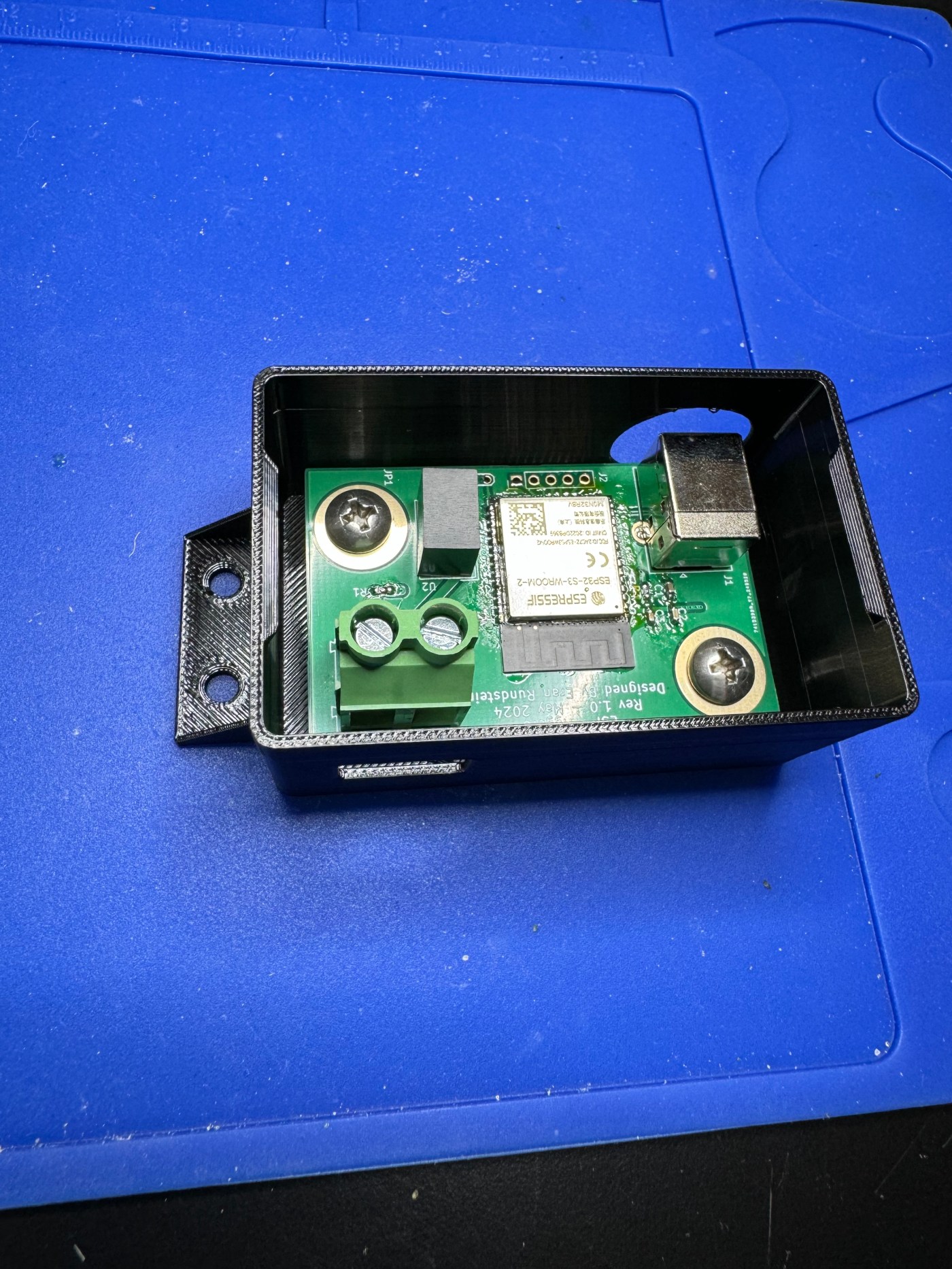
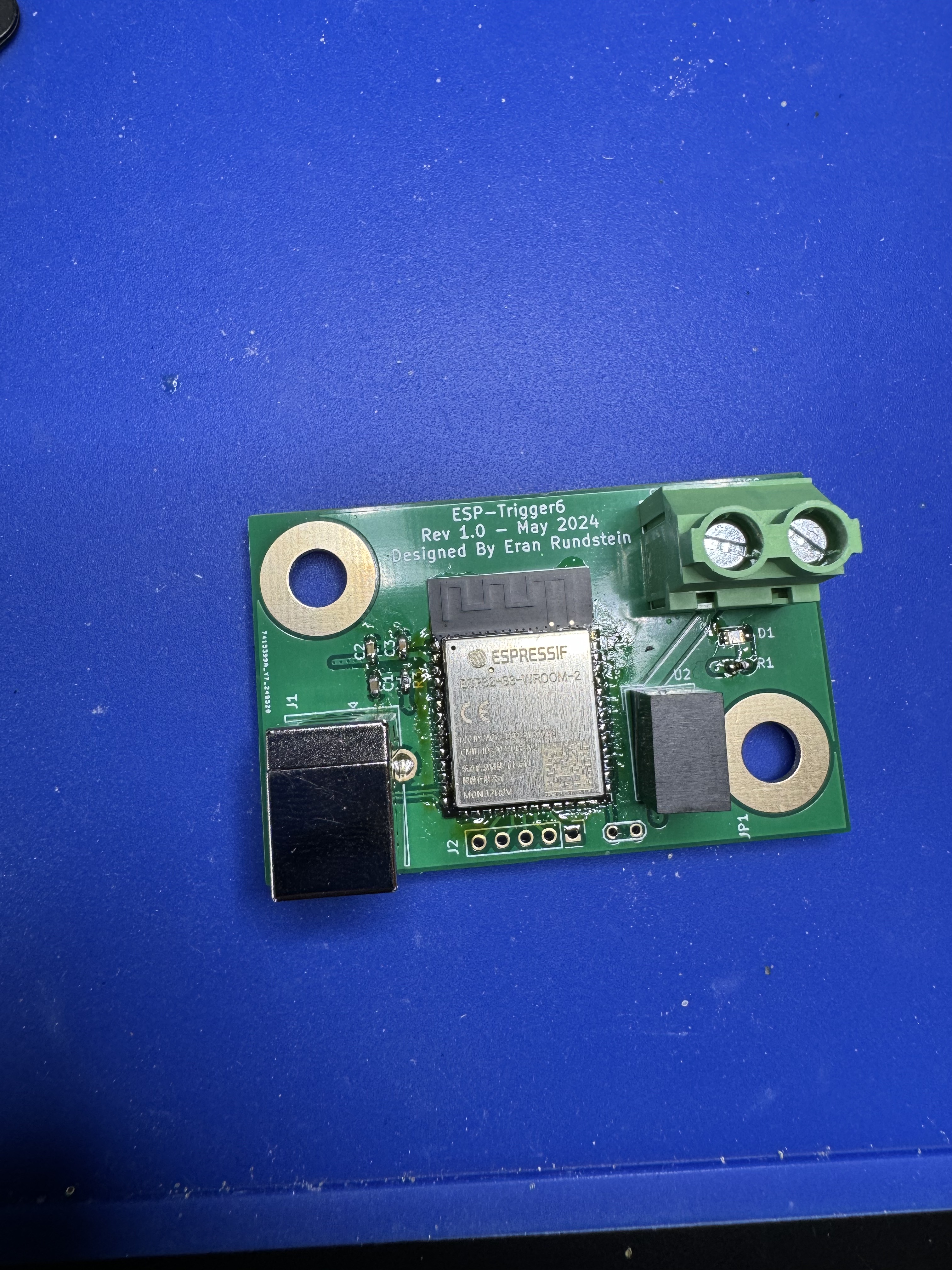
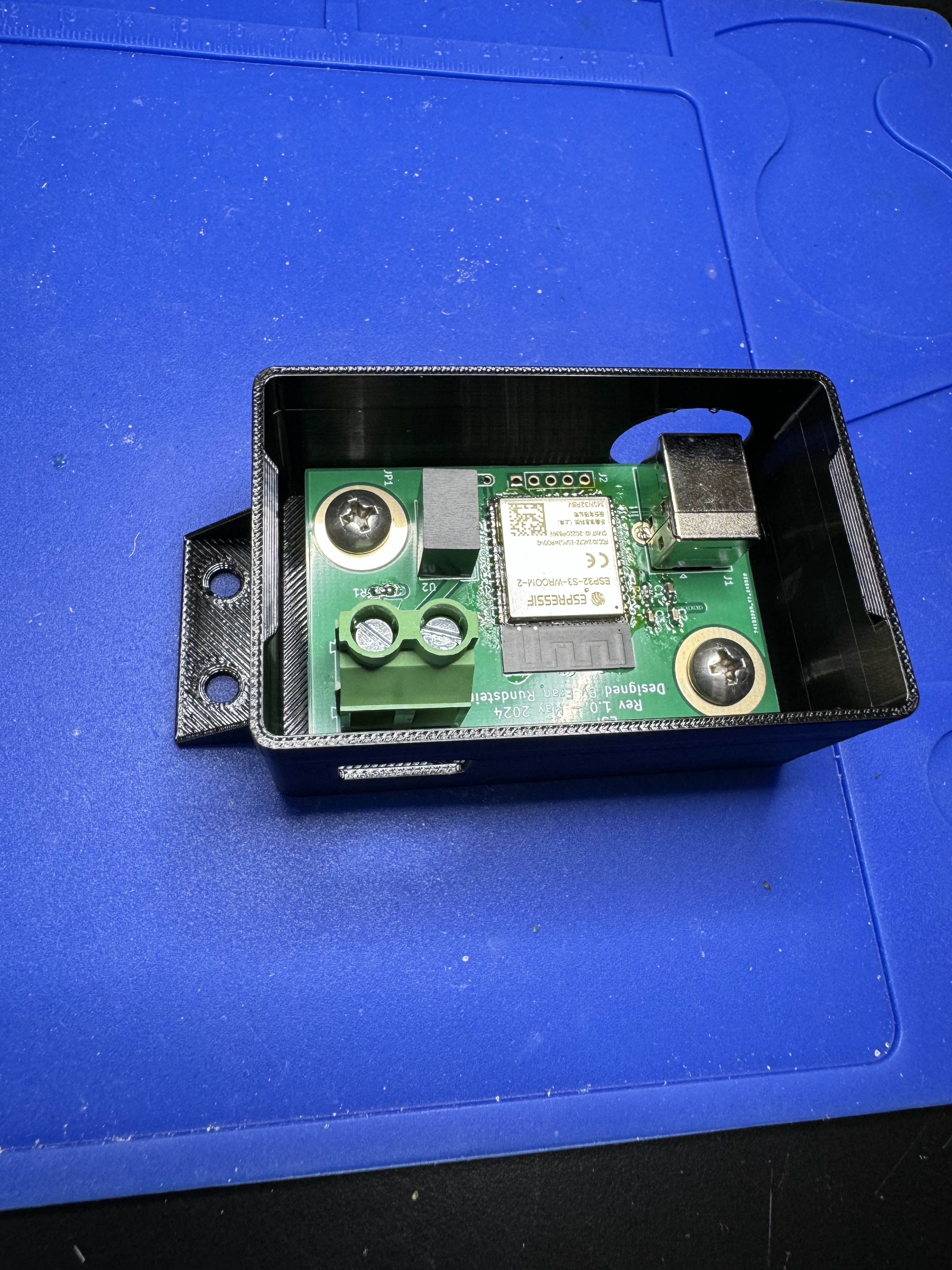
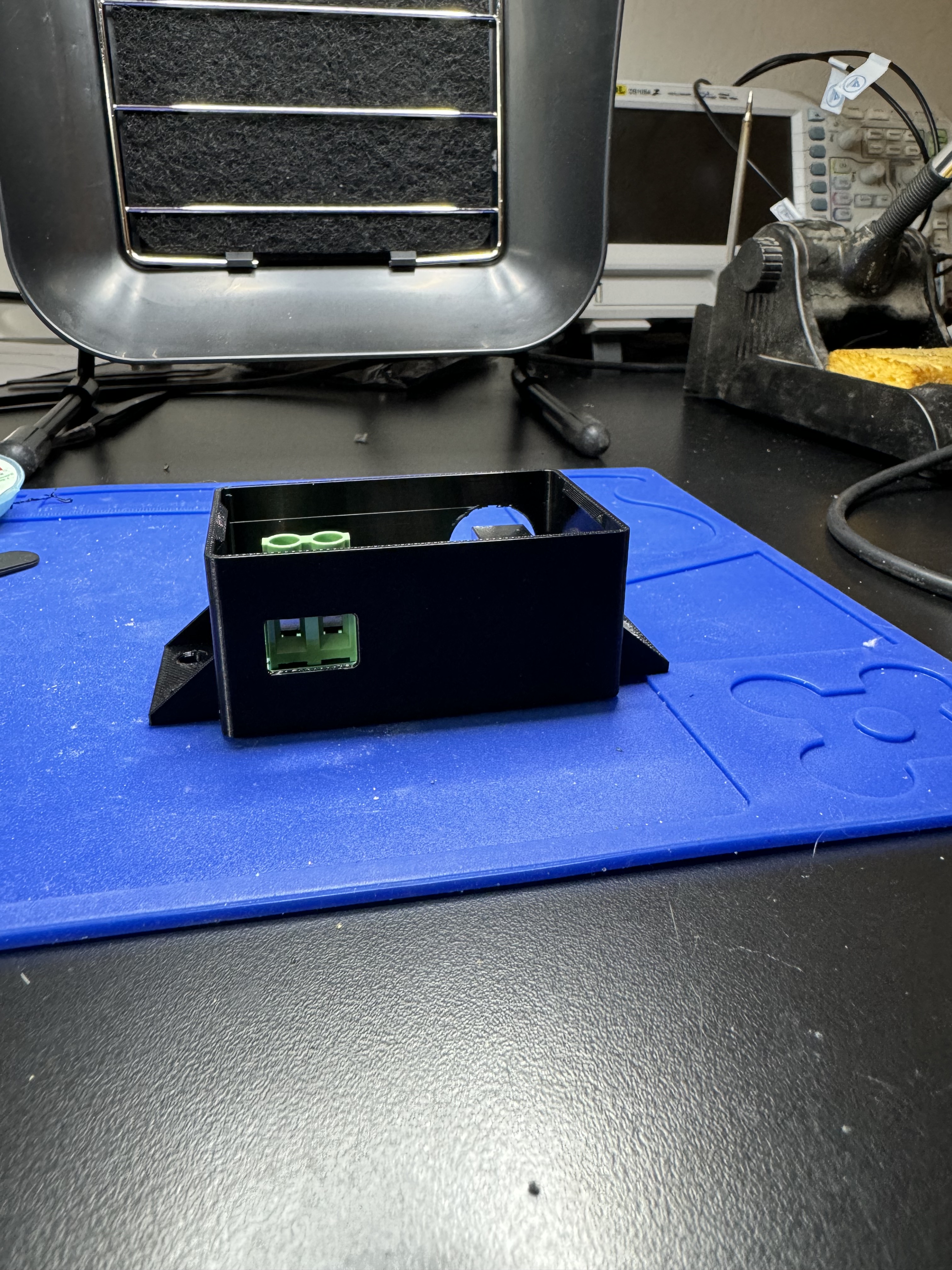
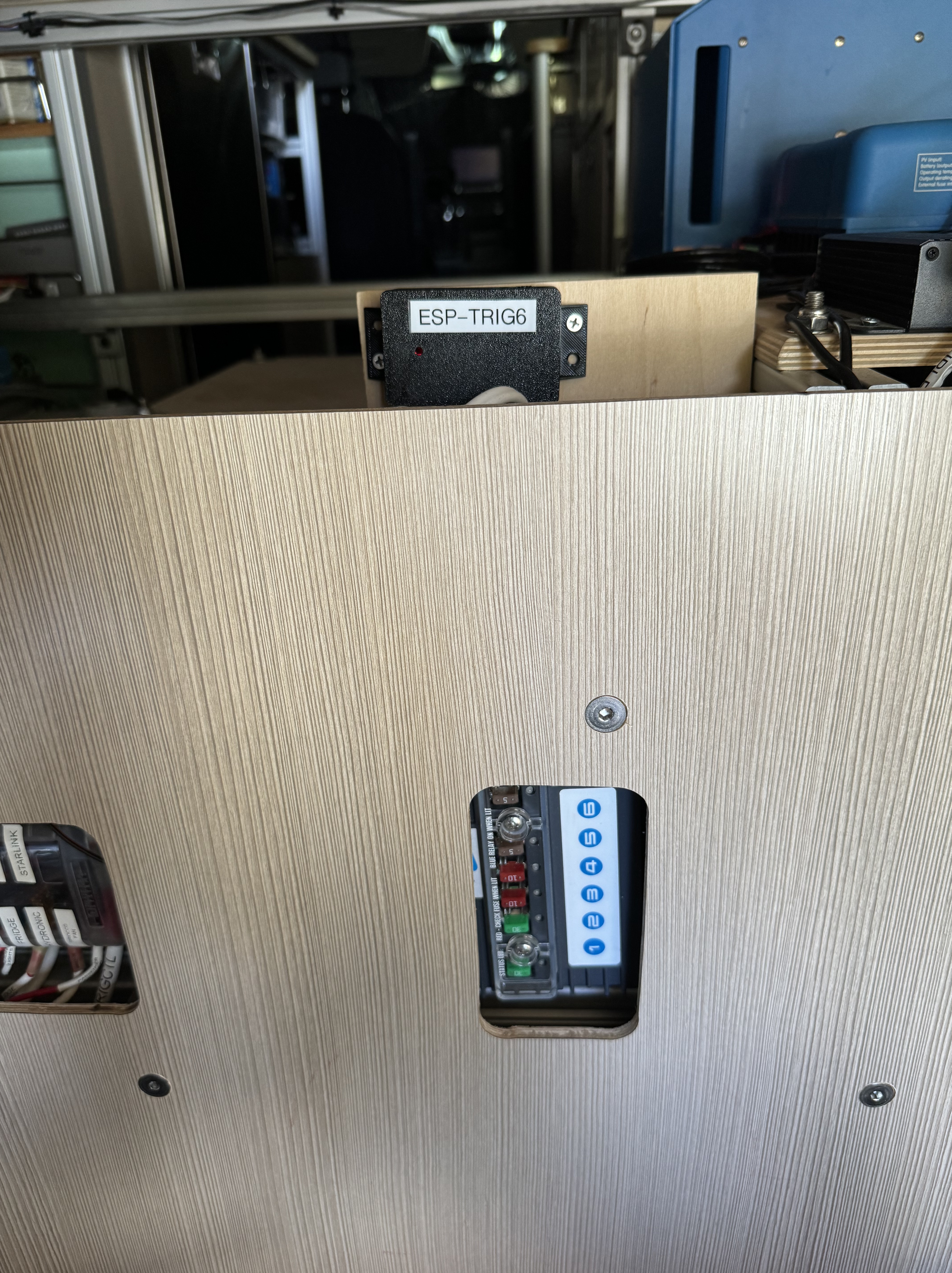
The ESPHome 6shooter controller has been working flawlessly. And no project is complete without a circuit board and an enclosure, so I sent a simple board to JLCPCB and 3d-printed an enclosure in PETG:
 Eran Rundstein's Blog
Leave a comment